
• Shopping Cart Shopping Cart
    0Shopping Cart
White Toner Transfer
  • News
  • Media/Software
  • Videos
  • Tutorials
    • Laser-Dark (No-Cut)
    • Laser-Light (No-Cut)
    • Multi-Trans
    • TransferRIP
    • Tips & Tricks
  • Support
    • FAQs
      • Laser-Dark (No-Cut)
      • Laser-Light (No-Cut)
      • Multi-Trans
      • TransferRIP
      • Printer Issues
      • Heat Presses
    • Restricted content
    • Downloads
  • Contact
  • My Account
  • Click to open the search input field Click to open the search input field Search
  • Menu Menu

How to Create T-Shirt Designs with Adobe Spark

In this video you will learn how to create t-shirt designs with Adobe Spark.

If you are the type of person who is always looking for a way to create a t-shirt design with minimal effort, all while making your t-shirt designs look great, then Adobe Spark is definitely the tool for you.

Download this tutorial as a printable PDF

Why Use Adobe Spark

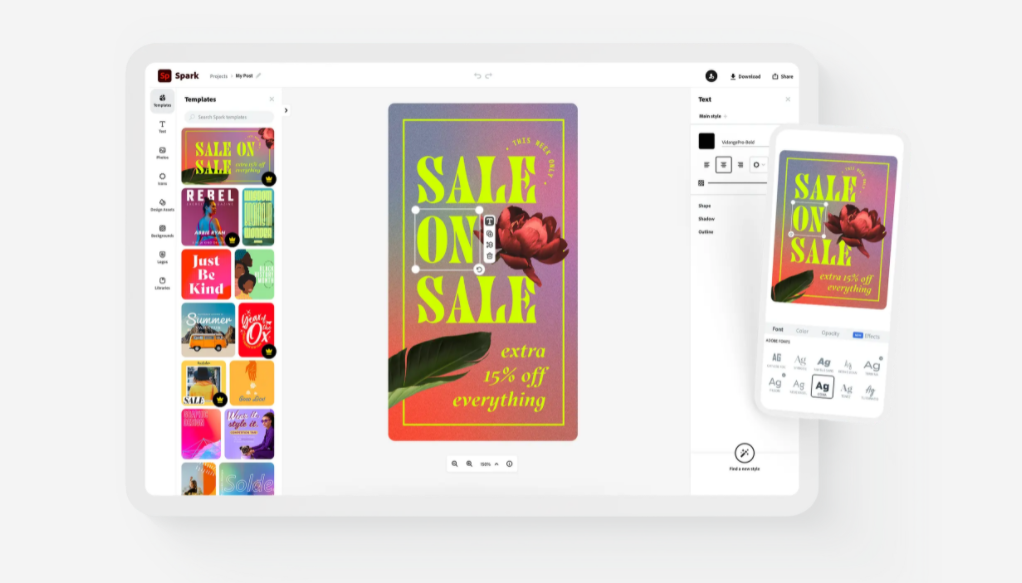
Adobe Spark is the ultimate browser based software for creating authentic professional content for social media, websites, print media, videos and more. You can do all this on your phone.

With the app versions of Adobe Spark, you have the flexibility to take inspiration from your surroundings. When the opportunity strikes, you can simply take out your phone and start taking photos, or start taking notes of whatever your t-shirt design should be.

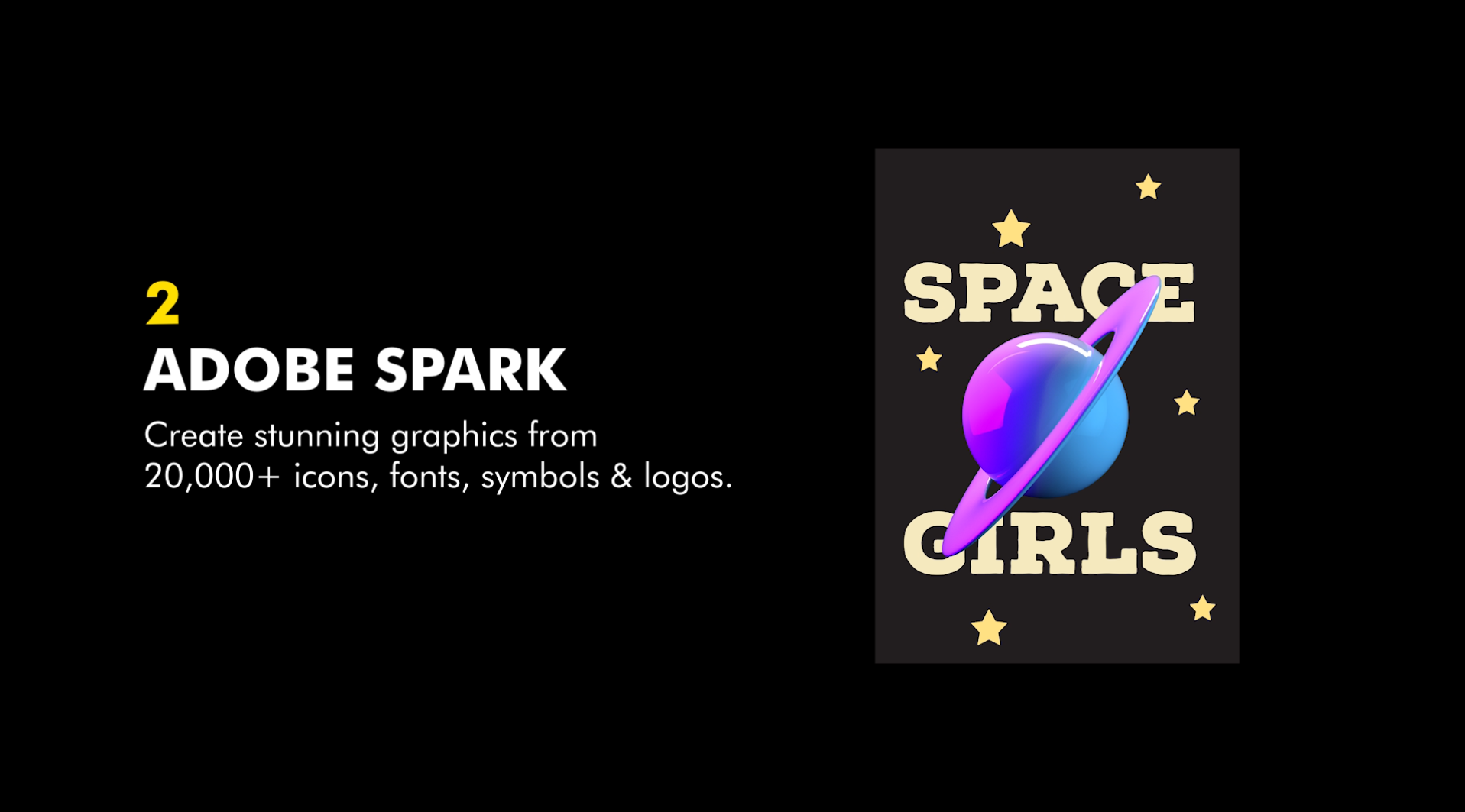
Adobe Spark offers over 20,000 plus assets, icons, images and fonts. That’s right, with Adobe Spark, you don’t need to worry about having to buy extra font packages or vector icons or illustrations to help boost or speed up your t-shirt designing process. Adobe Spark has everything in one place.

You can start creating t-shirt designs within a few minutes. With their extremely simple layout interface, you’ll be creating t-shirt designs in no time at all.
How to Create T-Shirt Designs with Adobe Spark
Account & File Setup

Creating a free Adobe Spark account is easy. Once you create your free Adobe Spark account you will be able to get started.

  1. Go to the Adobe Spark homepage.
  2. Login if you’re not already.
  3. Below the main banner you will find some suggestions to get you started.
  4. Choose the “Photo collage” option.
  5. Skip the option to upload or add an image to your design.
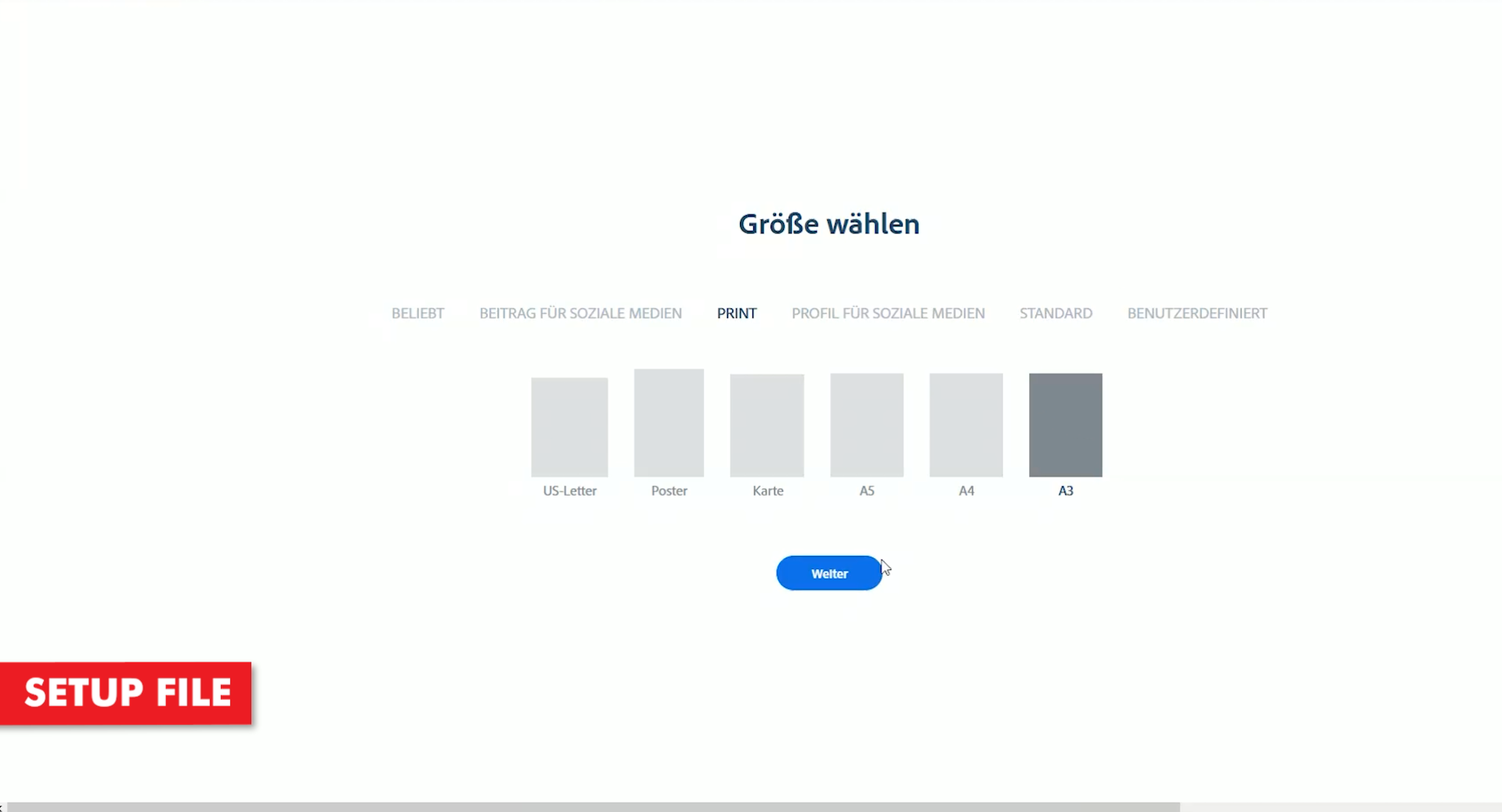
  6. Next, choose a canvas size. We should first click on the “Print” options first.
  7. Choose one of the available print options. We went with the A3 paper size.
  8. Click Next to create your canvas.

1. Setup File
2. Add Designs
3. Add Text
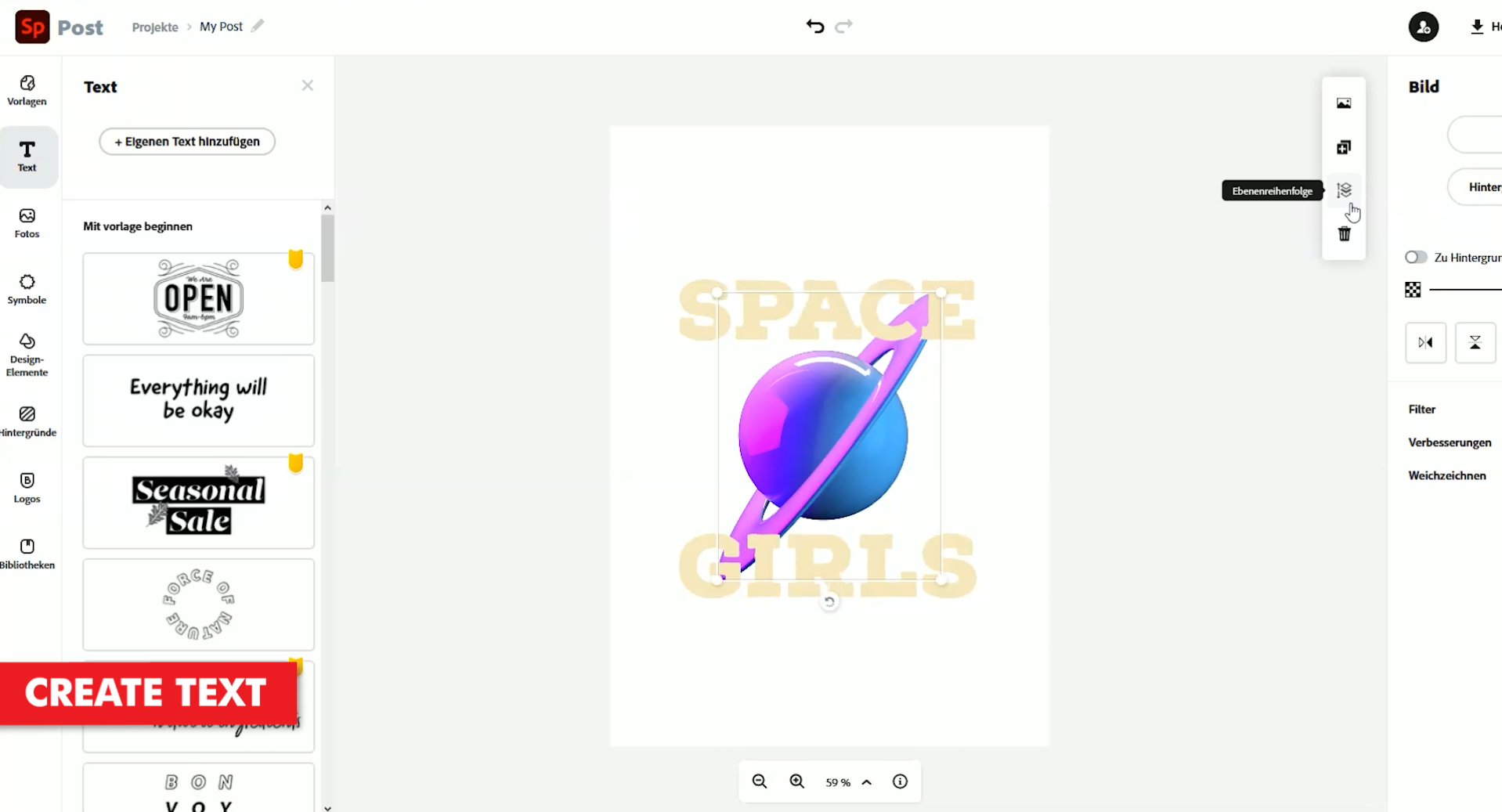
4. Add Details
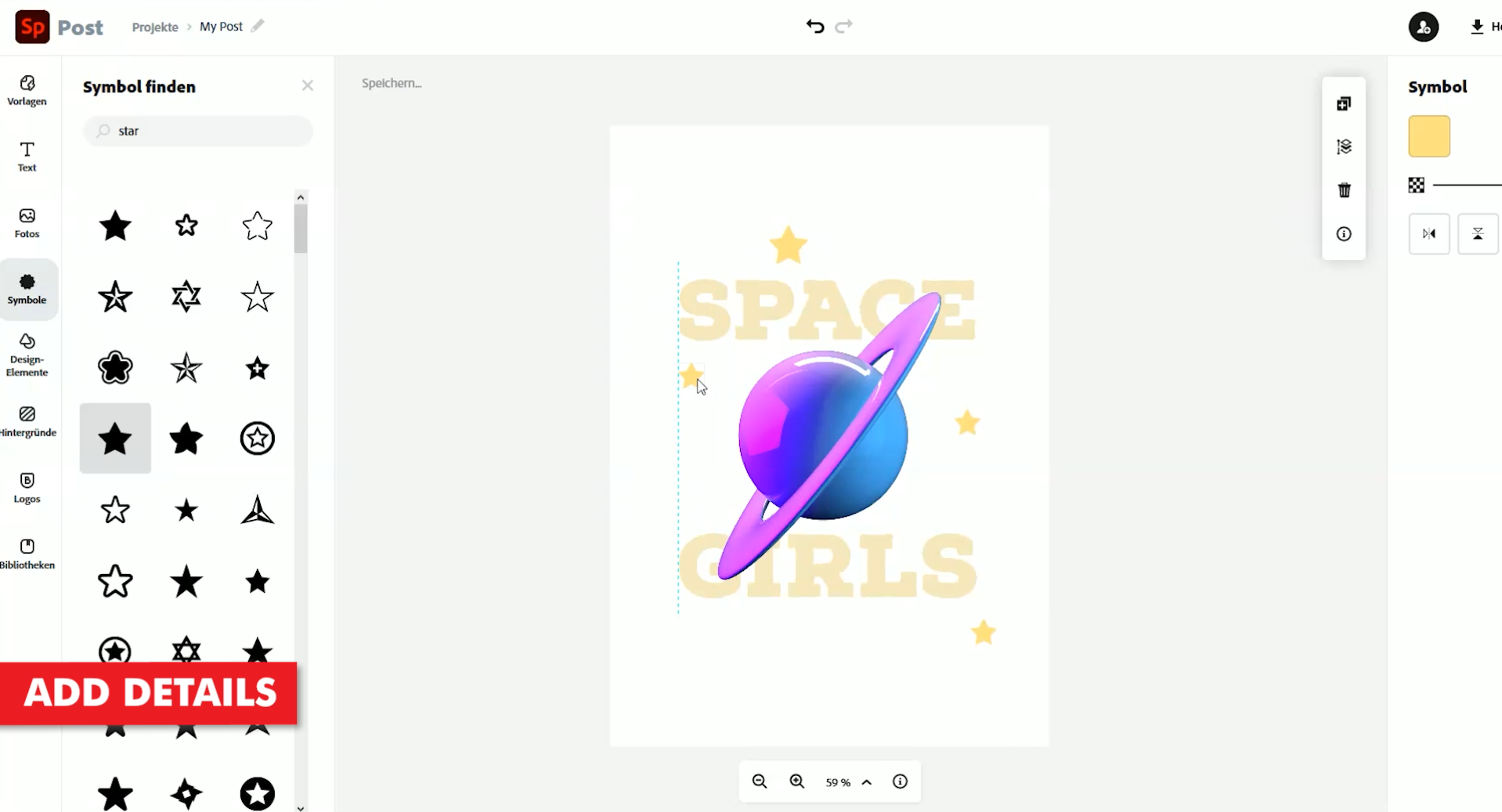
5. Scale to Fit Canvas
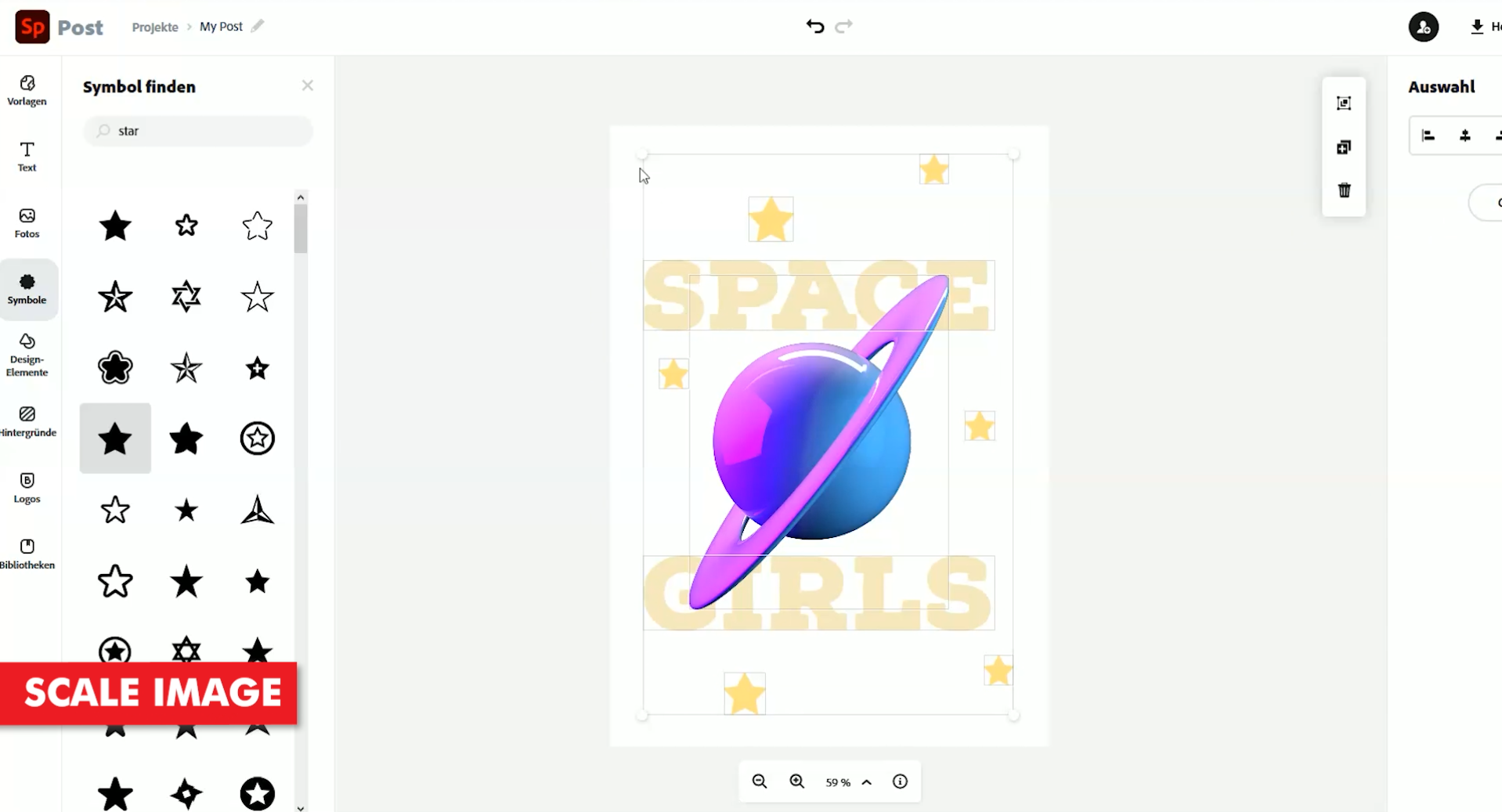
6. Print & Press to T-Shirt
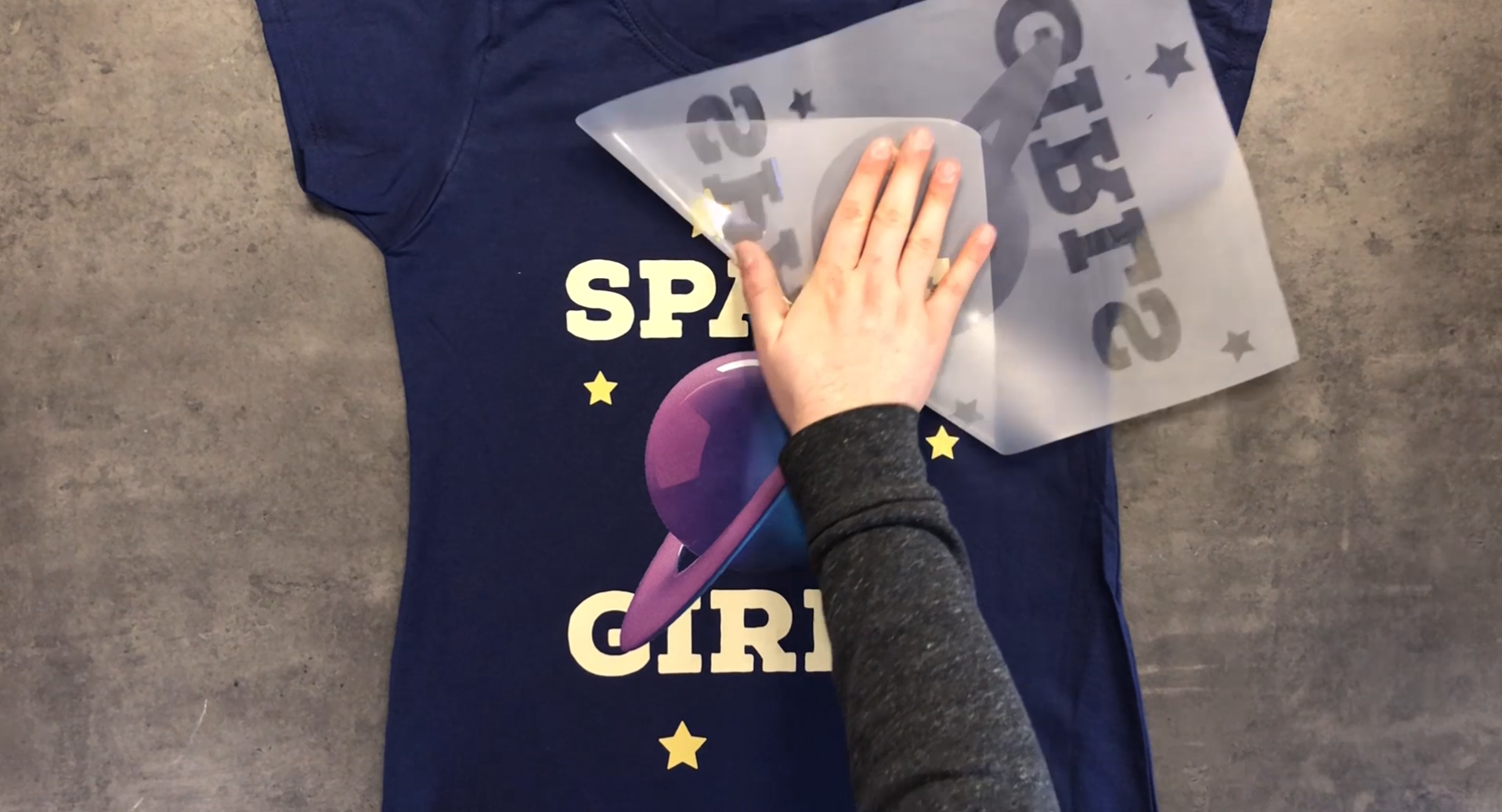
Choosing the Correct File Setup

We chose the A3 portrait print option for our t-shirt design. We recommend choosing the printable A3 or similar sized canvases if you ever decide to print the images.

If you start creating a t-shirt design which doesn’t use the correct print options, then you are only limiting how you can use this design. Non-print ready files are limited to online use. They can be printed, but in most cases, the quality of the image will be so bad that you will see small pixel squares.

Learn more about setting up print ready image files.

Designing T-Shirts like a Pro

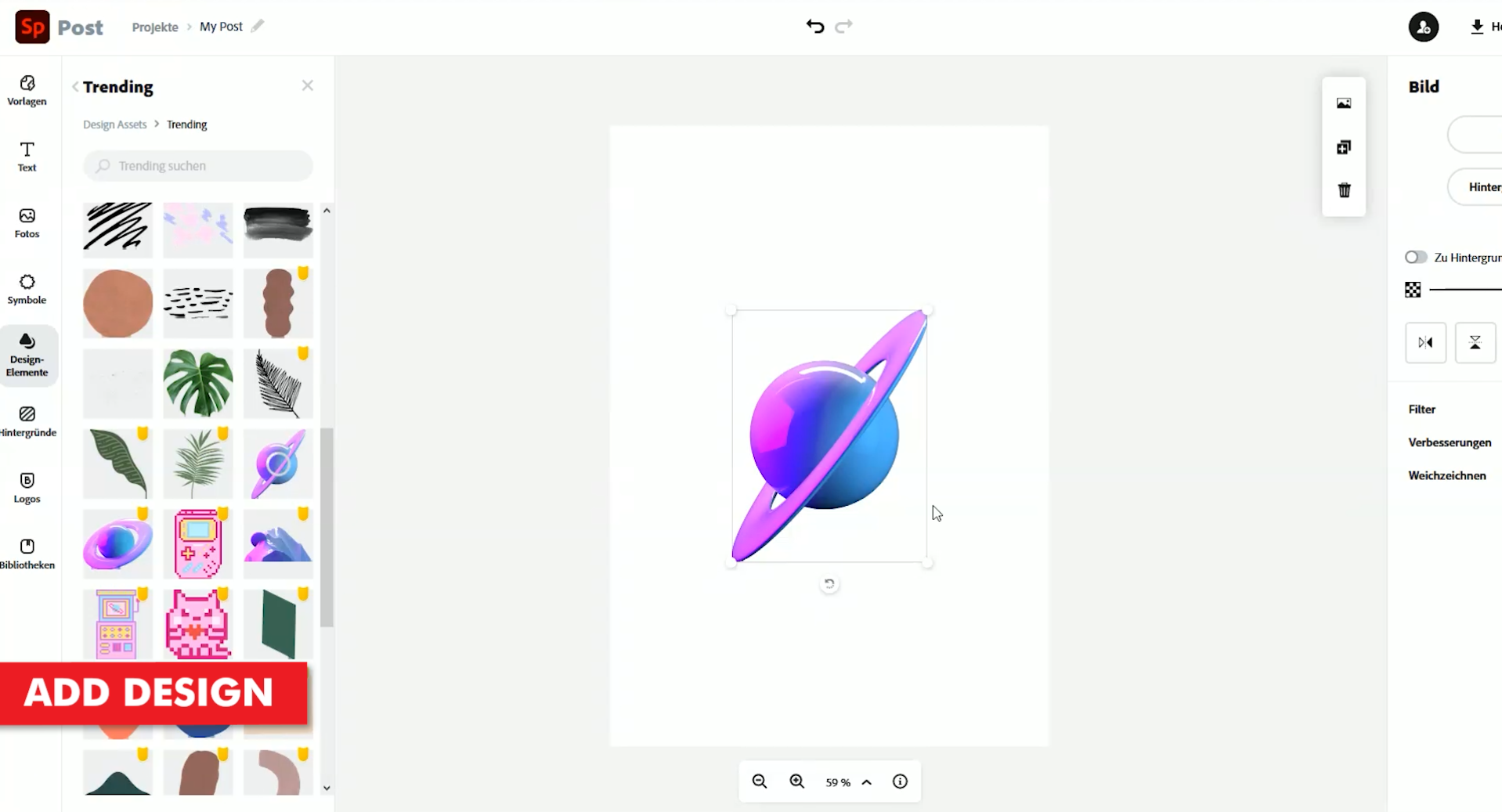
Once we’ve chosen our print paper size, you will be taken to the Adobe Spark designer interface. You will notice, on the left-hand side of the screen, are all the design elements and assets. There are several options available to help you create your tshirt designs.

What are the Adobe Spark design options:

  • Templates
  • Text
  • Photos
  • Icons
  • Design Assets
  • Background
  • Logos
  • Libraries

You can learn more about Adobe Spark Design options here.

Adding Text & Images

For the purpose of this tutorial, we will be using the Design Assets section as well as the Text tool. It wouldn’t hurt to also take a look at the Icons section. There may be some interesting icons, which we can use in our t-shirt design.

So, the first step we need to take, is to begin getting our t-shirt design idea on paper. We started with some text.
Our goal for this t-shirt design, is to create something around the theme of space and girls.

We first used the designs assets option to search for some space related objects and images. We found a pretty funky looking planet.

Then, we used the text tool and typed out the text for our design. Space Girls. Classic.
To spice it up a little, we head back over to the Design Assets section to find some more space images. Stars. Great.

Final Preparations & Exporting

Once we have all our images and text in place, we can edit, scale and even change the colours of each object. As you click on an object on your canvas, options for this particular image will appear on the right hand side of the screen.

Now that our deisgn has been created, we now need to export the file in a good enough quality that it can be printed.

In the top right hand corner, you will find the export option under the button called “Download”. Clicking this, you will be presented with 3 options.

What are the Adobe Spark Download Options:

  • PNG
  • JPG
  • PDF

The PNG & JPG options are primarily for online use. As we mentioned before, you can still print them, but they will not be great. The quality of these images will be optimised for digital screens. The PDF option on the other hand, is best used for printable files. This is the option that we want to go with.

Printing Like a Pro

Now that we’ve managed to download our pretty amazing looking new t-shirt design, we just have to send it through the TransferRIP software.

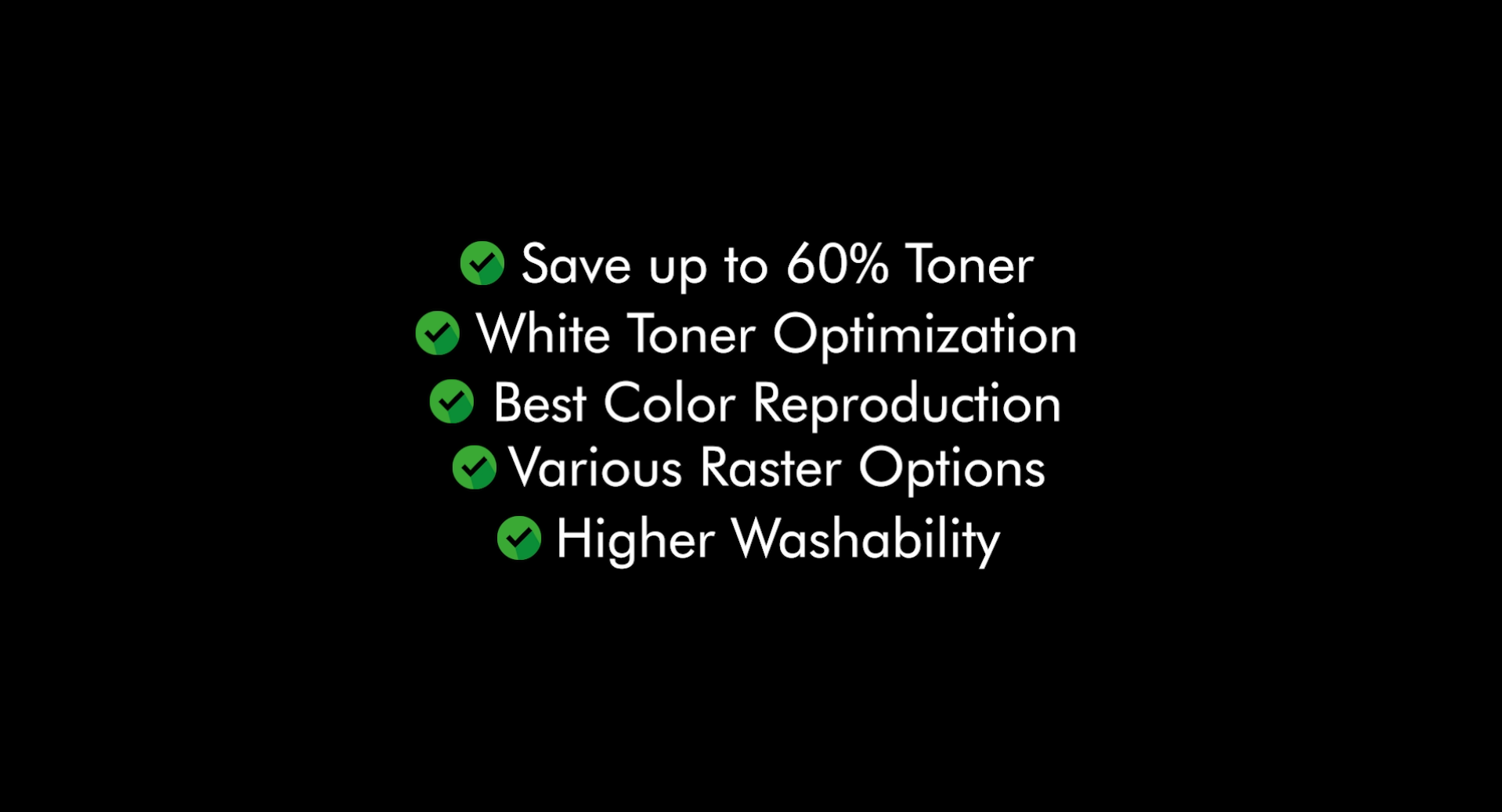
The TransferRIP software is great for reducing your white toner pritning costs as well as helping you print brighter, more washable and durable tshirt designs. If you would like to learn more about the TransferRIP software, then check out our TransferRIP posts.

Conclusion

For more information on the different ways you can create t-shirt designs for white toner printers, please take a look at our other tutorials. Our tutorials are primarily focused on how to make your life easier, so you can create designs for heat transfer papers and the OKI white toner laser printers.

Or sign up for the White toner transfer newsletter and we will send tutorials, tips & tricks and inspiration straight to your inbox.

Email Me More Tutorials Like This

You can learn more about our products over at our products page. We have a large range of products, which help you create and customise almost any garment or surface. Our goal is to help your business grow.

Leave a comment below. Let us know how your designs turned out and if you have any new topics which you would like to see, then please let us know too.

Download this tutorial as a printable PDF

Share this:

  • Share on Facebook (Opens in new window) Facebook
  • Share on LinkedIn (Opens in new window) LinkedIn
  • Share on X (Opens in new window) X
  • Share on Telegram (Opens in new window) Telegram
  • Share on WhatsApp (Opens in new window) WhatsApp
  • Email a link to a friend (Opens in new window) Email
  • Print (Opens in new window) Print

Like this:

Like Loading…

Related

Categories

  • Newsletters
  • Tutorials
    • Image Preparation
    • OKI White Toner Printers
  • Videos
    • Laser-Dark (No-Cut) LowTemp
    • Laser-Light (No-Cut)
    • Multi-Trans
    • TransferRIP

Newsletter

Latest News

  • How to Create Metallic Christmas Sweaters3rd December 2021 - 2:30 pm
  • Create Custom T-Shirt Designs from Words & Phrases13th August 2021 - 7:30 pm
  • How to Create Illustration Style T-Shirt Designs6th August 2021 - 7:00 pm

Latest Videos

  • How to Create Metallic Christmas Sweaters3rd December 2021 - 2:30 pm
  • Create Custom T-Shirt Designs from Words & Phrases13th August 2021 - 7:30 pm
  • How to Create Illustration Style T-Shirt Designs6th August 2021 - 7:00 pm

Transfer Media

  • Laser-Dark (No-Cut)
  • Laser Dark (No-Cut) LITE
  • Flex-Soft (No-Cut)
  • Laser-Light (No-Cut)
  • Laser Tattoo Paper
  • Multi-Trans
  • Multi-Trans Pro
  • Waterslide HT

Quicklinks

  • Acerca de
  • Transfers/Software
  • Soporte Técnico
  • Videos
  • Preguntas Frecuentes
  • Contacto
  • Mi Cuenta

Quicklinks

  • À propos
  • Media/Software
  • Support
  • Videos
  • FAQs
  • Contact
  • Mon compte

Software

  • IC-Split Software

White Toner Printers

  • OKI Pro8432WT
  • OKI Pro9420WT
  • OKI Pro7411WT
  • OKI Pro6410 Neon

Support

  • Videos
  • Printing Instructions
  • FAQs
  • Restricted content
  • Downloads
  • Restricted content
Popular
  • Preparing images for print10th March 2017 - 9:04 am
  • How to start a t-shirt business7th October 2024 - 12:32 pm
  • TransferRIP: Menu Overview22nd September 2015 - 8:34 am
  • TransferRIP: How to Update the TransferRIP software22nd September 2015 - 9:03 am

Keep in touch

Facebook
Instagram
YouTube


© Copyright - FOREVER GmbH 2020
  • Link to Facebook
  • Link to Youtube
  • Link to Instagram
  • Link to LinkedIn
  • About
  • My Account
  • Imprint
  • Privacy & Cookie Policy
Link to: Create T-Shirt Designs with your iPhone Camera Link to: Create T-Shirt Designs with your iPhone Camera Create T-Shirt Designs with your iPhone CameraLink to: How to Create Photo Collage T-Shirts Link to: How to Create Photo Collage T-Shirts How to Create Photo Collage T-Shirts
Scroll to top Scroll to top Scroll to top
By clicking "Accept," you agree to the use of third-party cookies and other similar technologies to enhance your browsing experience, analyze and measure your engagement with our content, and provide more relevant website content. Learn more about your choices and cookies.
Accept Read More
Privacy & Cookies Policy

Privacy Overview

This website uses cookies to improve your experience while you navigate through the website. Out of these, the cookies that are categorized as necessary are stored on your browser as they are essential for the working of basic functionalities of the website. We also use third-party cookies that help us analyze and understand how you use this website. These cookies will be stored in your browser only with your consent. You also have the option to opt-out of these cookies. But opting out of some of these cookies may affect your browsing experience.
Necessary
Always Enabled
Necessary cookies are absolutely essential for the website to function properly. This category only includes cookies that ensures basic functionalities and security features of the website. These cookies do not store any personal information.
Non-necessary
Any cookies that may not be particularly necessary for the website to function and is used specifically to collect user personal data via analytics, ads, other embedded contents are termed as non-necessary cookies. It is mandatory to procure user consent prior to running these cookies on your website.
SAVE & ACCEPT

More information can be found on our family of websites!

Are you looking for something else?

  • FOREVER-OTS.com Digital Heat Transfers
  • Black Toner Transfer
%d