• Shopping Cart Shopping Cart
    0Shopping Cart
White Toner Transfer
  • News
  • Media/Software
  • Videos
  • Tutorials
    • Laser-Dark (No-Cut)
    • Laser-Light (No-Cut)
    • Multi-Trans
    • TransferRIP
    • Tips & Tricks
  • Support
    • FAQs
      • Laser-Dark (No-Cut)
      • Laser-Light (No-Cut)
      • Multi-Trans
      • TransferRIP
      • Printer Issues
      • Heat Presses
    • Restricted content
    • Downloads
  • Contact
  • My Account
  • Click to open the search input field Click to open the search input field Search
  • Menu Menu

Create Custom Split Font T-Shirt Designs

Custom Font t-shirt designs are very popular at the moment and you should be creating them. And selling them.

Over the past year or so, we have seen an influx of customised fonts. They are becoming more popular across social media.

The natural next step is to go from digital to print. Creating a range of products with custom fonts is not a bad business idea.

We have created a small tutorial to help and inspire you to start creating your very own custom font t-shirt designs.

Our latest tutorial video takes you through the complete process, from finding fonts, customizing fonts and finally preparing them for print. For this tutorial we used Adobe Illustrator, but you can use your favourite program.

Download this tutorial as a printable PDF

How to Create Custom Font T-Shirt Designs
Step 1: Start Typing

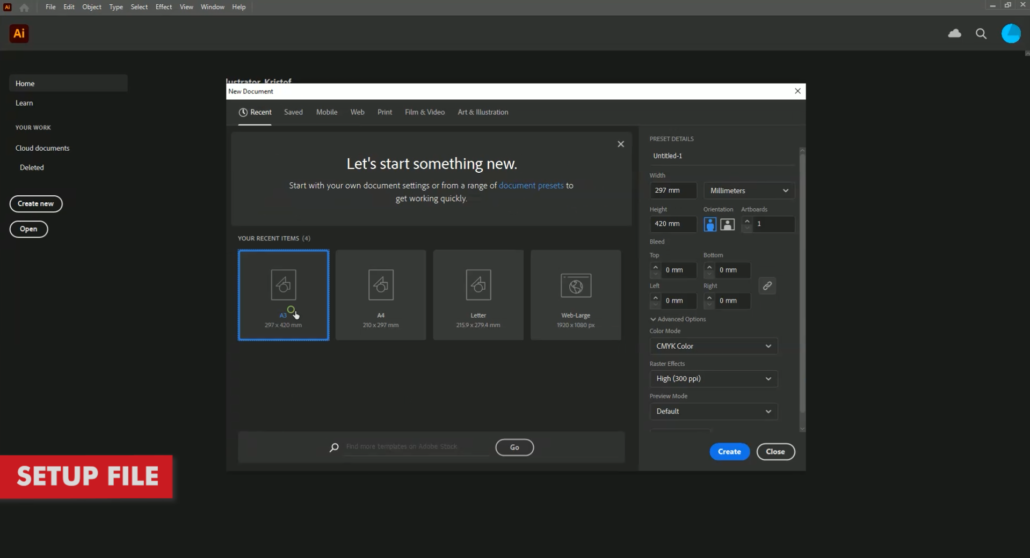
Once you have illustrator open and your artboard of choice has been setup, we should begin by typing out the saying or the word we want to use. Below, you can find some external links for inspiration.

Popular T-Shirt Quotes & Words:
  • Funny T-Shirt Quotes
  • Famous Quote T-Shirts
  • T-Shirts with Quotes
  • Popular 1-Word T-Shirts

Step 2: Choose Your Font

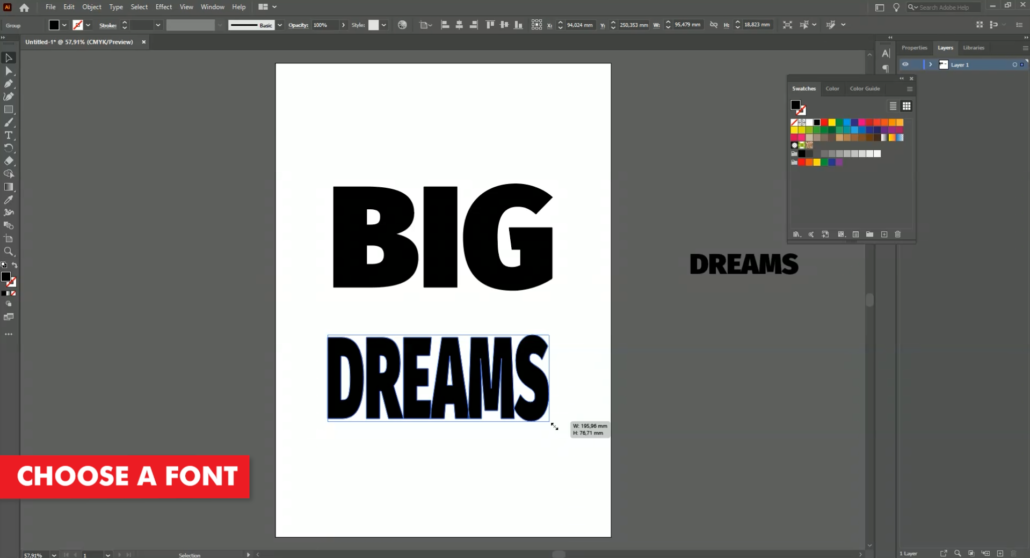
Now that you have your quote, saying or word typed out, you should choose a font style which you like. Now, there are two ways of doing this.

Firstly, you can open up the “Character” panel and scroll through the list of fonts which you already have installed on your machine. I personally find this option, great, but that’s because I already have hundreds of “non-standard” fonts installed.

Secondly, you can take a look at any of the many free font websites. A quick google search will take you to some of the most popular font websites.

Free doesn’t mean Free

Of course, before downloading any “free” fonts online, you should double-check the small print. Most of the time and depending on your use of the font, “Free” doesn’t mean “Free”. And, in most cases, purchasing the font for commercial purposes is your best bet.

That being said, below we have provided a few links to help you get inspired with your font choice. We do not earn anything from these links. We are simply saving you the time it takes to google them.

Inspirational Fonts for T-Shirts:

  • 10 Most popular Fonts in t-shirts
  • The 25 Best Fonts For T-Shirts
  • The Best Fonts for T-shirts

Step 3: Customizing Your Fonts

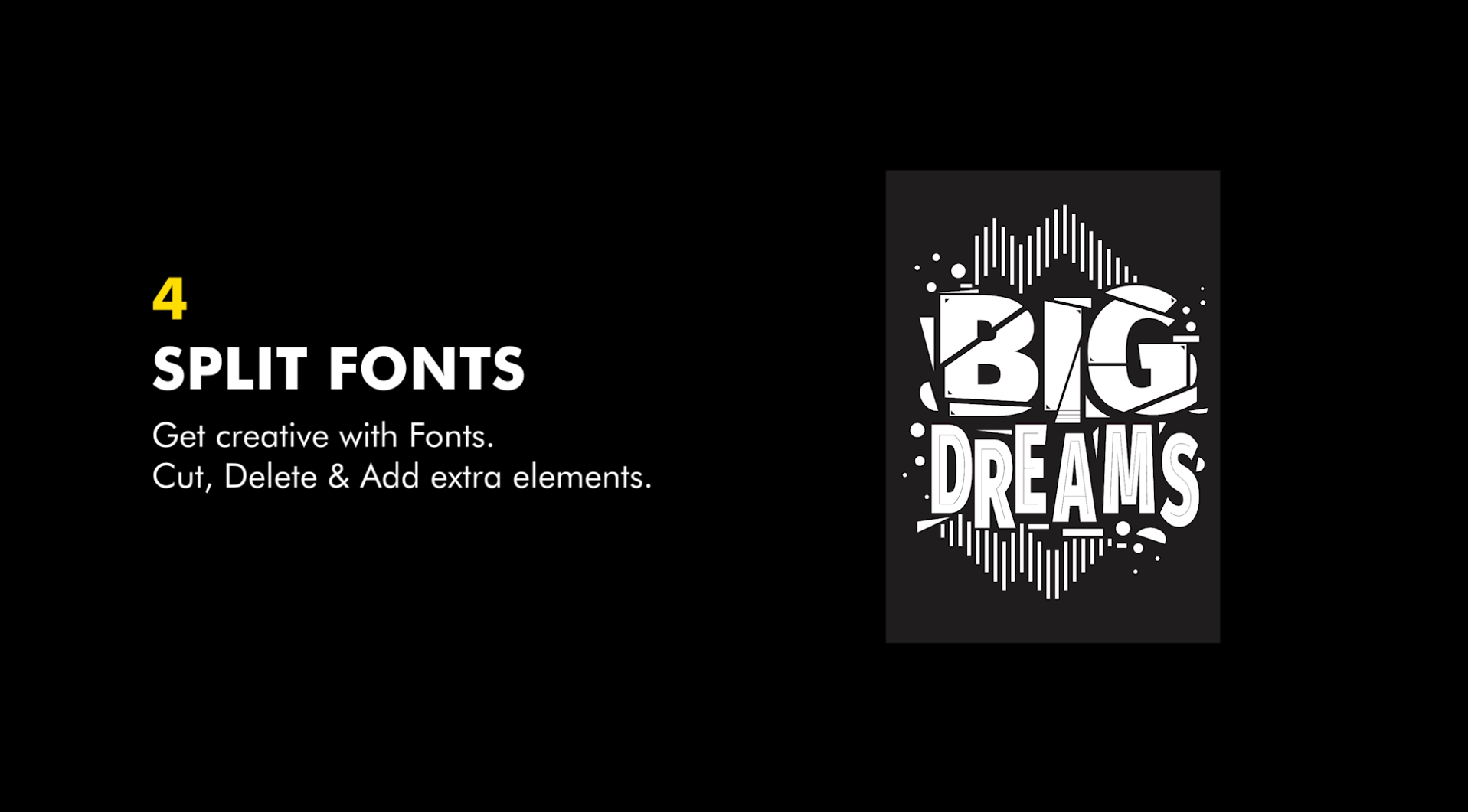
Now, that we have settled on our saying or one word t-shirt design, we need to start customizing it.

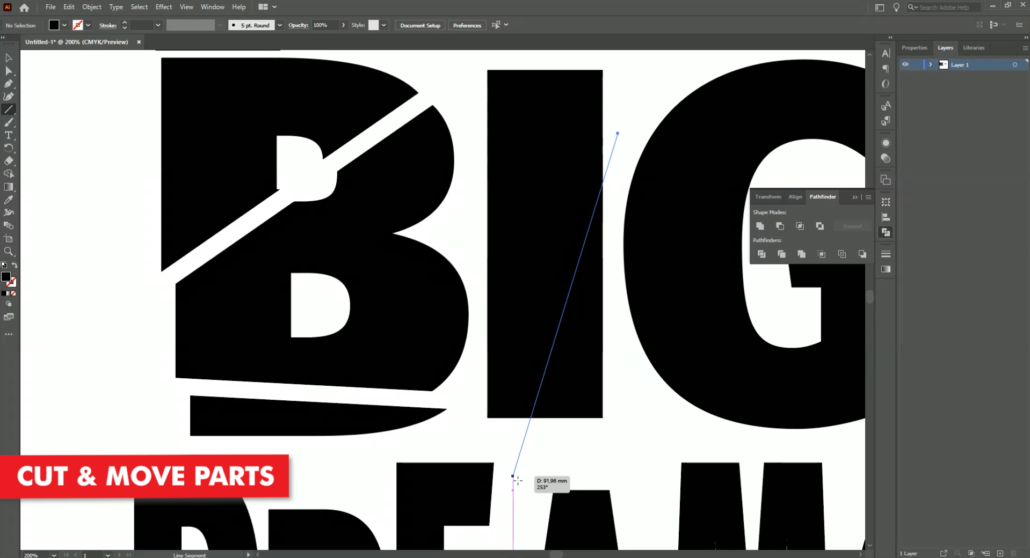
  1. Firstly, we should begin by turning our font into an outline. This way, we will have more control over the font. Espeically within illustrator and vector based programs. Similar options can be found in other programs.
  2. Secondly, start cutting parts of your font away. This can be done randomly or you can move whole letters up or down.
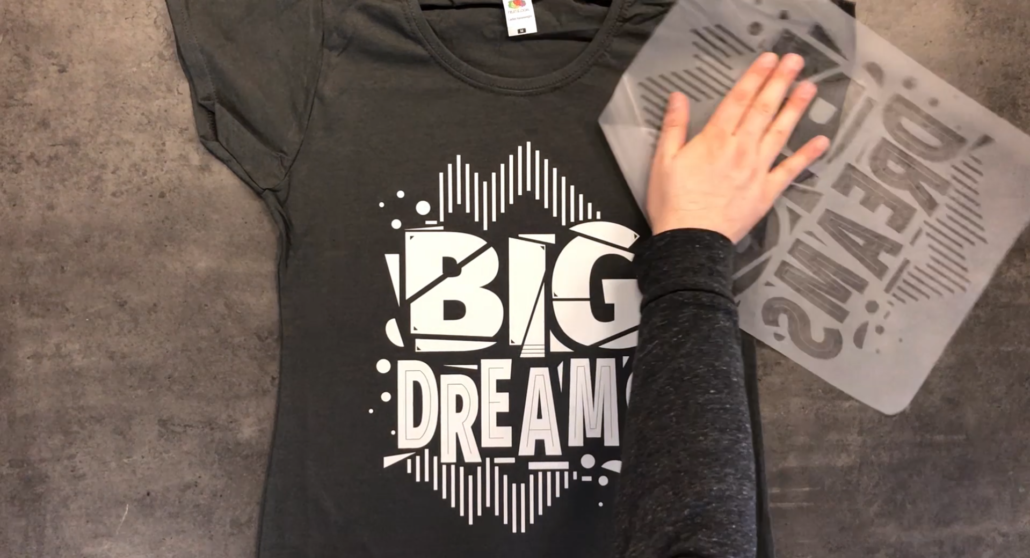
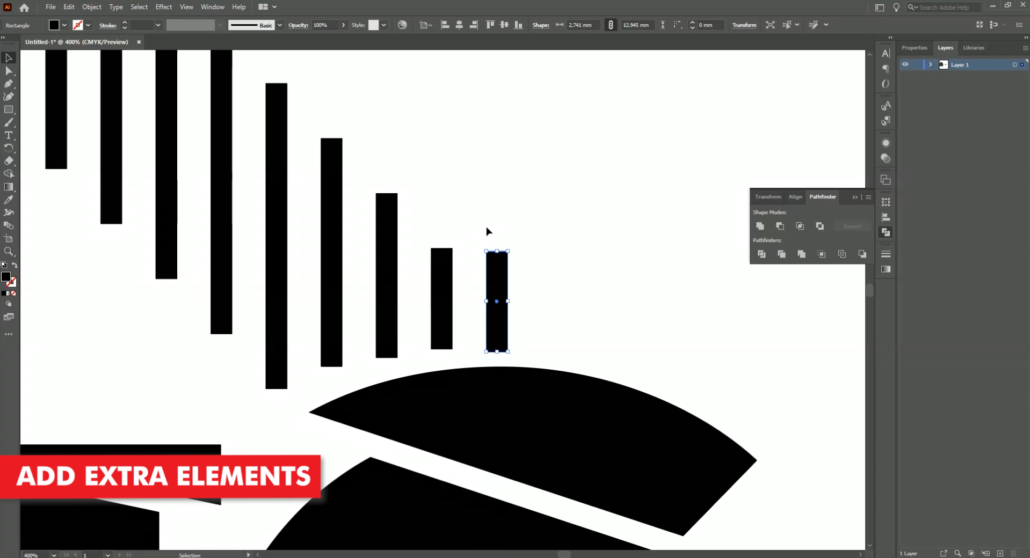
  3. Thirdly, you can add extra elements to your t-shirt design such as lines and shapes. One of the great advantages of printing Laser-Dark (No-Cut) or any of our other No-Cut transfer papers – is that you can add elements which are really fine, detailed or even halftone effects. Remember, you can print any details you like.
Step 4: Print

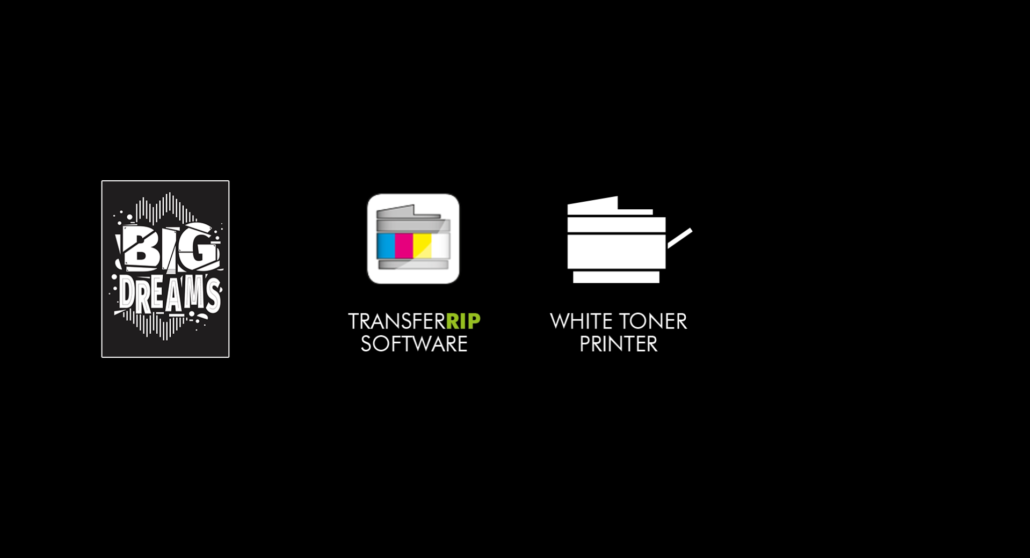
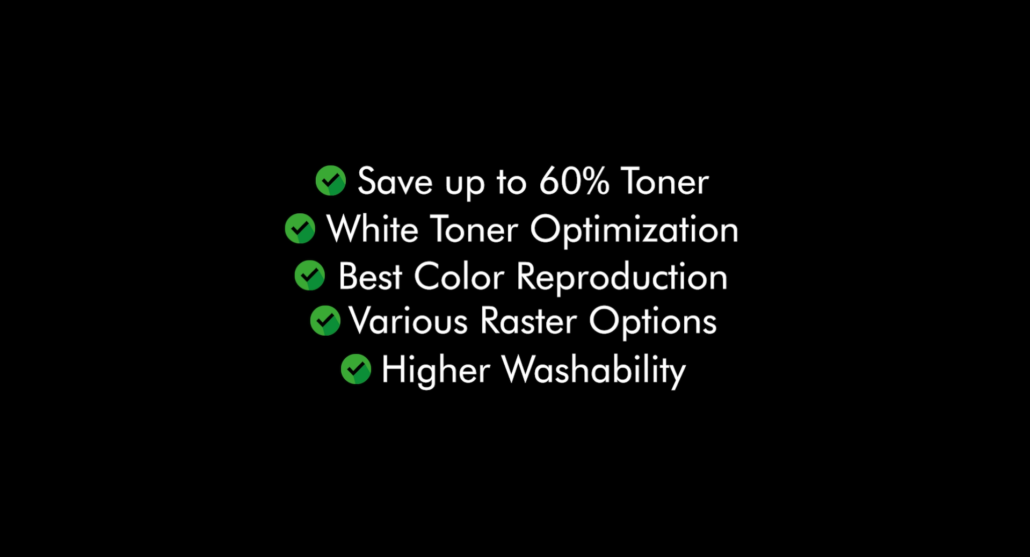
Now that our custom font t-shirt design is complete, we can go ahead and print it. The best to do this is by processing our image through the TransferRIP software. In this video, we created a purely white t-shirt design, so this perticular design would only benefit from using the TransferRIP software, if we used the Micro-Mask raster option.

The Micro-Mask raster option, helps you open up the white parts of your image. In fact, the micro-mask option applies a mask across the whole image. It doesn’t matter which colour values you have. Especially when we compare the micro-mask option to the Dark or Light media raster options.

Learn more about the TransferRIP Image Rasterization options.

Once your design has been printed out, you can then press your t-shirt transfer to your garment. Take a look at our many other tutorials to learn how to press to t-shirts.
Conclusion

For more information on the different ways you can create t-shirt designs for white toner printers, please take a look at our other tutorials. Our tutorials are primarily focused on how to make your life easier, so you can create designs for heat transfer papers and the OKI white toner laser printers.

Or sign up for the White Toner Transfer Newsletter and we will send tutorials, tips & tricks and inspiration straight to your inbox.

Sign me up!

You can learn more about our products over at our products page. We have a large range of products, which help you create and customise almost any garment or surface. Our goal is to help your business grow.

Leave a comment below. Let us know how your designs turned out and if you have any new topics which you would like to see, then please send them over too.

Download this tutorial as a printable PDF

Share this:

  • Share on Facebook (Opens in new window) Facebook
  • Share on LinkedIn (Opens in new window) LinkedIn
  • Share on X (Opens in new window) X
  • Share on Telegram (Opens in new window) Telegram
  • Share on WhatsApp (Opens in new window) WhatsApp
  • Email a link to a friend (Opens in new window) Email
  • Print (Opens in new window) Print

Like this:

Like Loading…

Related

Categories

  • Newsletters
  • Tutorials
    • Image Preparation
    • OKI White Toner Printers
  • Videos
    • Laser-Dark (No-Cut) LowTemp
    • Laser-Light (No-Cut)
    • Multi-Trans
    • TransferRIP

Newsletter

Latest News

  • How to Create Metallic Christmas Sweaters3rd December 2021 - 2:30 pm
  • Create Custom T-Shirt Designs from Words & Phrases13th August 2021 - 7:30 pm
  • How to Create Illustration Style T-Shirt Designs6th August 2021 - 7:00 pm

Latest Videos

  • How to Create Metallic Christmas Sweaters3rd December 2021 - 2:30 pm
  • Create Custom T-Shirt Designs from Words & Phrases13th August 2021 - 7:30 pm
  • How to Create Illustration Style T-Shirt Designs6th August 2021 - 7:00 pm

Transfer Media

  • Laser-Dark (No-Cut)
  • Laser Dark (No-Cut) LITE
  • Flex-Soft (No-Cut)
  • Laser-Light (No-Cut)
  • Laser Tattoo Paper
  • Multi-Trans
  • Multi-Trans Pro
  • Waterslide HT

Quicklinks

  • Acerca de
  • Transfers/Software
  • Soporte Técnico
  • Videos
  • Preguntas Frecuentes
  • Contacto
  • Mi Cuenta

Quicklinks

  • À propos
  • Media/Software
  • Support
  • Videos
  • FAQs
  • Contact
  • Mon compte

Software

  • IC-Split Software

White Toner Printers

  • OKI Pro8432WT
  • OKI Pro9420WT
  • OKI Pro7411WT
  • OKI Pro6410 Neon

Support

  • Videos
  • Printing Instructions
  • FAQs
  • Restricted content
  • Downloads
  • Restricted content
Popular
  • Preparing images for print10th March 2017 - 9:04 am
  • How to start a t-shirt business7th October 2024 - 12:32 pm
  • TransferRIP: Menu Overview22nd September 2015 - 8:34 am
  • TransferRIP: How to Update the TransferRIP software22nd September 2015 - 9:03 am

Keep in touch

Facebook
Instagram
YouTube


© Copyright - FOREVER GmbH 2020
  • Link to Facebook
  • Link to Youtube
  • Link to Instagram
  • Link to LinkedIn
  • About
  • My Account
  • Imprint
  • Privacy & Cookie Policy
Link to: How to Create Photo Collage T-Shirts Link to: How to Create Photo Collage T-Shirts How to Create Photo Collage T-ShirtsLink to: Create Customized Font T-Shirt Designs Link to: Create Customized Font T-Shirt Designs Create Customized Font T-Shirt Designs
Scroll to top Scroll to top Scroll to top
By clicking "Accept," you agree to the use of third-party cookies and other similar technologies to enhance your browsing experience, analyze and measure your engagement with our content, and provide more relevant website content. Learn more about your choices and cookies.
Accept Read More
Privacy & Cookies Policy

Privacy Overview

This website uses cookies to improve your experience while you navigate through the website. Out of these, the cookies that are categorized as necessary are stored on your browser as they are essential for the working of basic functionalities of the website. We also use third-party cookies that help us analyze and understand how you use this website. These cookies will be stored in your browser only with your consent. You also have the option to opt-out of these cookies. But opting out of some of these cookies may affect your browsing experience.
Necessary
Always Enabled
Necessary cookies are absolutely essential for the website to function properly. This category only includes cookies that ensures basic functionalities and security features of the website. These cookies do not store any personal information.
Non-necessary
Any cookies that may not be particularly necessary for the website to function and is used specifically to collect user personal data via analytics, ads, other embedded contents are termed as non-necessary cookies. It is mandatory to procure user consent prior to running these cookies on your website.
SAVE & ACCEPT

More information can be found on our family of websites!

Are you looking for something else?

  • FOREVER-OTS.com Digital Heat Transfers
  • Black Toner Transfer
%d